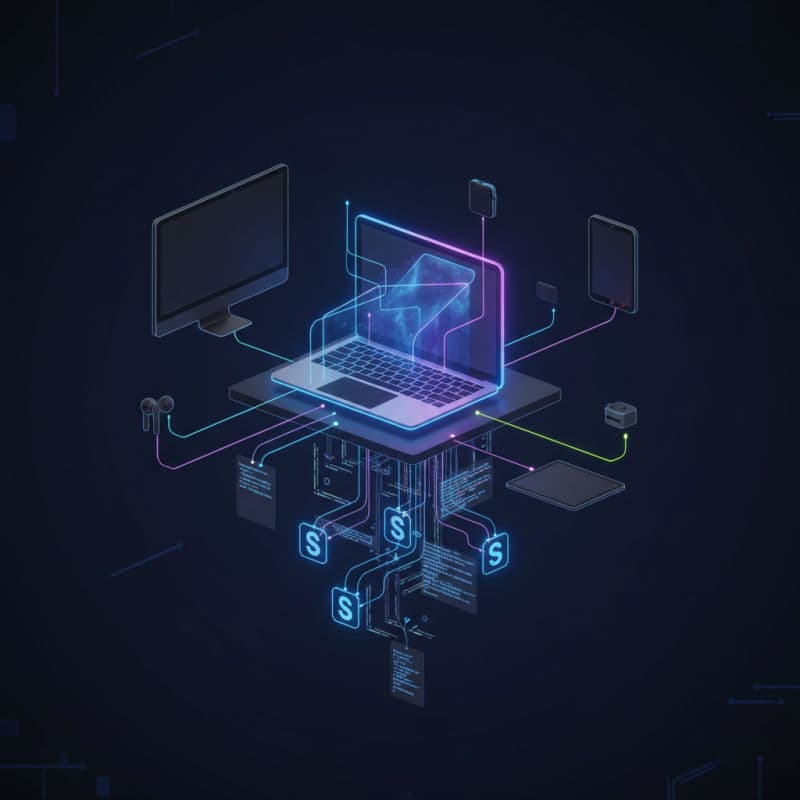
Introduction to the Apple Desktop Ecosystem
The Apple Desktop Ecosystem is more than just a collection of apps; it's an integrated environment designed to empower your workflow. At its heart lies macOS, Apple's robust and user-friendly operating system for Macs, which acts as the central hub for your desktop experience. But the ecosystem extends far beyond the Mac itself, seamlessly connecting with your iPhone, iPad, Apple Watch, and even Apple TV through powerful features like Handoff, Universal Clipboard, and Sidecar.
For developers, the Apple Desktop Ecosystem offers unparalleled tools and services. Xcode, Apple's integrated development environment, is a prime example, providing everything you need to build applications for all Apple platforms. Coupled with command-line tools, robust Unix underpinnings, and a thriving open-source community, macOS is a formidable platform for any development task. Understanding how these components work together is crucial for maximizing your efficiency and crafting high-quality applications.
This article will explore the core pillars of the Apple Desktop Ecosystem, from fundamental macOS features to advanced Continuity functions and essential developer tools. You'll learn how to leverage these capabilities to create a fluid, efficient, and enjoyable computing experience.
macOS Fundamentals: Core Features for Every User
macOS provides a rich set of features that form the backbone of the Apple Desktop Ecosystem. Understanding these fundamentals is key to building a productive workflow.
Finder: At the core of macOS file management is Finder. It's not just a file browser; it deeply integrates with iCloud Drive, network shares, and external storage. You can use Finder tags for effortless organization, Smart Folders for dynamic content grouping, and Quick Look for instant previews without opening files.
Spotlight: This powerful search utility (accessible via Cmd + Space) goes beyond finding files. Spotlight can launch apps, perform calculations, convert units, search the web, and even find emails or documents based on their content.
Mission Control & Spaces: Mission Control (Control + Up Arrow) gives you an overview of all open windows, desktop spaces, and full-screen apps. "Spaces" allow you to create multiple virtual desktops, each with its own set of applications and windows, helping you categorize and manage your work more effectively. You can easily switch between spaces using Control + Right/Left Arrow.
System Settings (or System Preferences in older macOS): This is where you customize your Mac. From display settings and network configurations to privacy controls and keyboard shortcuts, mastering System Settings allows you to tailor your Mac experience precisely to your needs. Always check for updates here to ensure you're running the latest and most secure version of macOS.
Automation with Shortcuts (macOS Monterey and later): The Shortcuts app, previously exclusive to iOS, brings powerful automation to your Mac. You can create custom workflows that automate repetitive tasks, integrate with other apps, and even run on specific triggers. This is a game-changer for speeding up your daily routines.
For example, to quickly create a shortcut that resizes an image, you would open the Shortcuts app, create a new shortcut, add the 'Get Image from Input' action, followed by 'Resize Image', and then 'Save File'. This can be triggered from the Services menu in Finder.
Continuity Features: Bridging Your Apple Devices
The true magic of the Apple Desktop Ecosystem lies in its Continuity features, which seamlessly connect your Mac with your iPhone, iPad, and other Apple devices. These features eliminate friction and create a unified experience, boosting your productivity.
Handoff: Start a task on one Apple device and seamlessly continue it on another. For example, begin drafting an email on your iPhone and instantly pick it up on your Mac, or browse a webpage on your iPad and open it on your Mac's Safari. Handoff works with Apple's native apps (Mail, Safari, Pages, Numbers, Keynote, Maps, Messages, Reminders) and many third-party apps that have adopted the feature. (Requires iOS 8/macOS Yosemite or later).
Universal Clipboard: Copy text, images, photos, and video from one Apple device and paste it directly onto another. This is incredibly powerful for transferring small pieces of information without needing to email or message yourself. (Requires iOS 10/macOS Sierra or later).
Sidecar: Extend your Mac's desktop to your iPad or use your iPad as a high-precision input device with Apple Pencil. This transforms your iPad into a secondary display, perfect for creative work, reference materials, or simply giving you more screen real estate. Sidecar can connect wirelessly or via a USB cable. (Requires iPadOS 13/macOS Catalina or later).
iPhone Cellular Calls/Continuity Camera: Make and receive iPhone calls directly on your Mac, iPad, or Apple Watch, even if your iPhone is in another room. Continuity Camera lets you use your iPhone (or iPad) to scan documents or take pictures from within a Mac app, with the content appearing instantly on your Mac. (Requires iOS 8/macOS Yosemite or later for calls; iOS 12/macOS Mojave or later for Continuity Camera).
Auto Unlock with Apple Watch: Unlock your Mac automatically when you're wearing an unlocked Apple Watch and are near your computer. No need to type your password! (Requires watchOS 3/macOS Sierra or later).
Universal Control (macOS Monterey 12.3 and later): Control multiple Macs and iPads with a single keyboard and mouse (or trackpad). You can effortlessly move your cursor between devices, type on any of them, and even drag and drop files between them. This feature is revolutionary for multi-device setups.
Implementing these Continuity features requires that all your devices are signed into the same Apple ID, have Bluetooth and Wi-Fi enabled, and in some cases, are connected to the same Wi-Fi network. By maximizing these connections, you create a truly fluid and interconnected workspace.
Developer Tooling & Ecosystem for macOS
macOS is a powerful platform for developers, offering a rich set of tools and a developer-friendly environment. Whether you're building native Apple apps, web services, or working on cross-platform projects, the ecosystem provides robust support.
Xcode: Apple's integrated development environment (IDE) is essential for developing apps across iPhone, iPad, Mac, Apple Watch, and Apple TV. Xcode includes everything you need: a code editor, visual Interface Builder, debugger, instruments for performance analysis, and complete documentation. It supports Swift and Objective-C, and integrates seamlessly with Git for version control. (Requires macOS Catalina 10.15.4 or later for current versions of Xcode).
Swift & Objective-C: These are the primary languages for developing on Apple platforms. Swift, in particular, offers modern syntax, safety features, and excellent performance, making it highly attractive for new projects.
Homebrew: While not an Apple-exclusive tool, Homebrew is the de facto package manager for macOS, making it easy to install and manage command-line tools, utilities, and software that Apple doesn't provide by default. It's an indispensable tool for any developer on macOS.
Terminal & UNIX Underpinnings: macOS is built on a UNIX-based core, providing a powerful command-line interface (CLI) through Terminal. This allows developers to use a vast array of UNIX utilities, scripting languages (like Bash, Zsh, Python, Ruby), and development tools directly. This robust foundation makes macOS a favorite for many developers.
Simulator & TestFlight: Xcode provides robust simulators for testing your apps on various iPhone, iPad, Apple Watch, and Apple TV models directly on your Mac. For beta testing with real users, TestFlight (integrated with App Store Connect) allows you to distribute pre-release versions of your apps and gather feedback.
CloudKit & SwiftUI: For backend services, CloudKit offers a declarative way to store and retrieve data directly from Apple's iCloud infrastructure. SwiftUI, Apple's declarative UI framework, revolutionizes app development, allowing you to build UIs across all platforms with less code and enhanced productivity. (Requires macOS Catalina 10.15/iOS 13 or later for SwiftUI first generation; newer versions require more recent OS versions).
Mastering these tools and understanding how they integrate empowers you to build sophisticated and efficient applications, leveraging the full power of the Apple ecosystem. For example, using Swift Playgrounds on iPad for initial code exploration and then seamlessly transitioning to Xcode on Mac for full-scale development is a prime example of the ecosystem's power.
Security and Privacy in the Apple Ecosystem
Security and privacy are fundamental pillars of the Apple Desktop Ecosystem, designed to protect your data and ensure your digital safety. Apple's approach integrates hardware and software to offer robust protection from the ground up.
Secure Enclave: Many modern Macs (those with Apple Silicon or T2 Security Chip) include a Secure Enclave coprocessor. This hardware component stores sensitive information like Touch ID (or Face ID on some iPhones/iPads) data encrypted and isolated from the main processor, making it extremely difficult for unauthorized access.
Gatekeeper and Notarization: macOS employs Gatekeeper to verify downloaded apps. By default, it only allows apps from the App Store and identified developers to run. Apple's notarization service scans submitted apps for malicious content before they are distributed, adding another layer of security.
System Integrity Protection (SIP): Introduced in macOS El Capitan, SIP prevents malware and even root users from modifying critical system files and folders, providing protection against system-level attacks.
Privacy Controls: macOS offers granular control over which applications can access your microphone, camera, location, photos, contacts, and other sensitive data. You can review and adjust these permissions in System Settings > Privacy & Security at any time.
FileVault: This feature encrypts the entire contents of your Mac's startup disk, providing strong protection for your data if your Mac is lost or stolen. It's highly recommended to enable FileVault.
App Transparency Tracking (ATT): While more prominent on iOS, ATT also influences how apps interact with your data on macOS by requiring apps to explicitly ask for your permission before tracking your activity across other companies' apps and websites.
For developers, adhering to best practices like sandboxing applications, requesting minimal necessary permissions, and properly handling user data is crucial. The ecosystem provides the tools and guidelines to build secure applications that respect user privacy. Always keep your macOS and apps updated to benefit from the latest security patches.
Optimizing Your Workflow with Ecosystem Integration
Beyond individual features, the true power of the Apple Desktop Ecosystem comes from weaving them into a seamless and optimized workflow. Here are strategies to maximize your productivity:
Unified Notifications: Manage all your notifications from Mac, iPhone, and iPad in one place. Focus Modes (macOS Monterey and later) allow you to customize which notifications appear at certain times or when using specific apps, reducing distractions.
iCloud Sync: Leverage iCloud Drive, iCloud Photos, iCloud Mail, Calendars, Reminders, and Notes to keep all your important data synchronized across all devices. This means your work is always up-to-date and accessible, regardless of which device you're using. Developers can use iCloud to sync app data using CloudKit or NSUbiquitousKeyValueStore.
Shared Password Management with iCloud Keychain: Securely store and sync your passwords, credit card information, and Wi-Fi network passwords across all your Apple devices. This makes logging into websites and apps effortless and secure.
Automating with Shortcuts and Automator: While Shortcuts is newer and more powerful (macOS Monterey+), Automator still offers robust capabilities for creating workflows, quick actions, and applications to automate repetitive tasks on your Mac. Combine them with AppleScript for deep system control.
Developer Benefits:
- Simulator & Device Management: Easily deploy and debug apps on connected devices or simulators from Xcode. Handoff debugging between devices for complex scenarios.
- Asset Management: Use Asset Catalogs in Xcode for unified image, color, and data asset management that scales across different resolutions and device types.
- Version Control Integration: Xcode's built-in Git integration simplifies code management, branching, and merging for development teams.
By consciously integrating these features, you can eliminate mundane tasks, reduce context switching, and focus more on creative and productive work. For example, a developer might use Universal Control to drag a design asset from an iPad with a client's feedback directly into Xcode on their Mac, while simultaneously using Handoff to finish an email drafted on their iPhone. This level of integration transforms individual devices into a cohesive, powerful workstation.